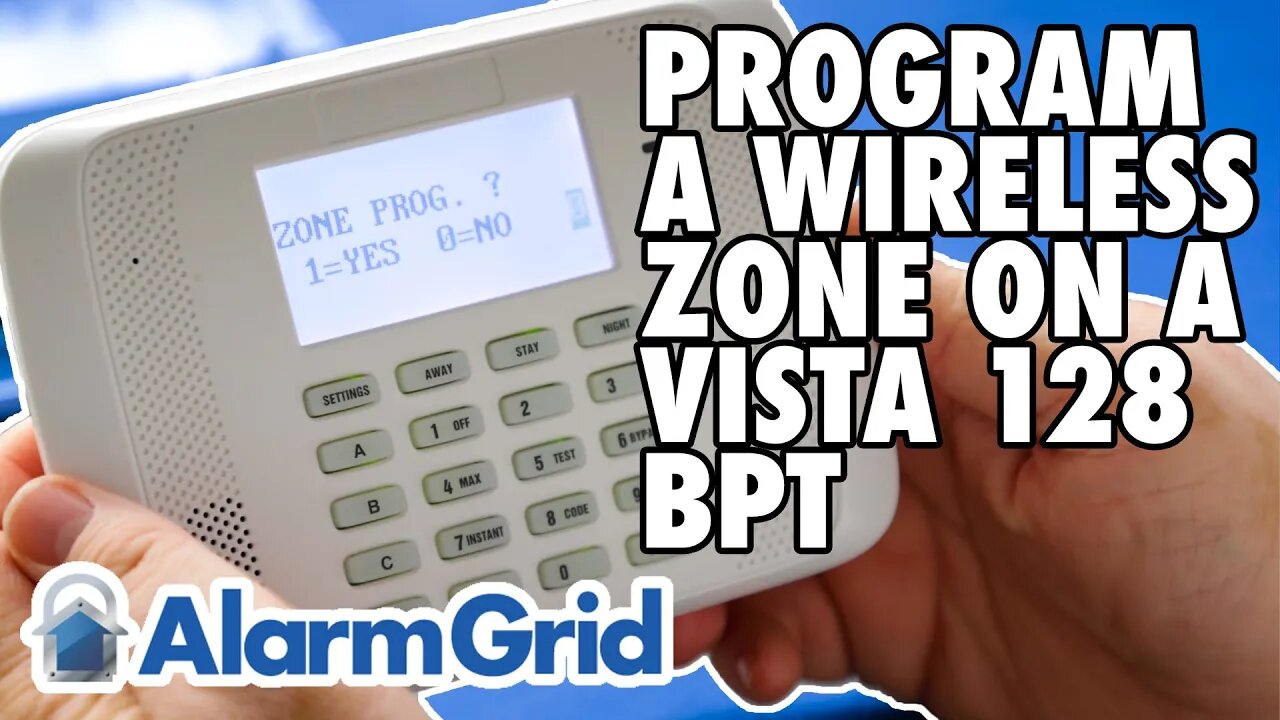
VISTA 128BPT - Programming a Wireless Zone
In this video Griffin from Alarm Grid shows the user how to program a wireless receiver and then a wireless zone into a VISTA-128BPT panel. The steps to program a VISTA-250BPT are exactly the same. Resideo and Alarm Grid recommend using address 07 for your first RF receiver. The VISTA-128BPT can support up to two (2) receivers per system.
To address a 5881-style receiver to address 07, set dip switches 2, 3, and 4 to ON. Connect the receiver to the panel's keypad bus. Enter programming (Installer Code + 8 + 000, default code is 4140) and press [#] or [*] + 93 to enter menu-driven programming. You will be prompted with several options before you reach Device Programming. Press 0 for No on each of these options. At Device Programming? Press 1 for Yes. When prompted for the device address, enter 07 and press [*].
At device type, enter 03 for RF Receiver and press [*]. At RF House Code, if you aren't using any bi-directional devices such as the 5828, 5828V, or 5804BD, or 5804BDV, then you can leave this setting at 00 and press [*]. If you are using bi-directional devices, just be sure the House ID entered here matches the House ID you program into your other devices. Press [*] and you will be back at Enter Device. Press [00] [*] and at the "Quit Menu Mode?" prompt, press [1] + [*].
Press [#] or[*] + 93 again and this time at the "Zone Programming" prompt, enter 1 for Yes. Enter the zone number you wish to program then press [*]. A little-known fact is that you can program any zone as a wireless zone, even zone numbers 1 - 9. The only zone you can't program as a wireless zone is zone number 64. This is reserved for low battery supervision for wireless keypads. To move through the prompts, press [*] to move forward. If you need to return to the previous prompt, press [#]. Program the zone based on your needs, following the information shown in the video. There are a lot of options in zone programming, and some of them are only shown if you program certain prerequisites first. For that reason, we won't go into all the details here. When in doubt, refer to the FAQ linked below or the Program Guide for the VISTA-128BPT.
After you view the final summary screen, at the end of the programming for your zone, press [*] and you will be back at the "Enter Zone Number" prompt. If you are finished with zone programming, enter [000] + [*] and you will shown the "Quit Menu Mode?" prompt. Press [1] and you'll be back in regular non-menu programming. Press [*] + 99 to exit programming. Be sure to test any new zones you've programmed.
https://www.alarmgrid.com/faq/how-do-i-program-a-wireless-zone-on-a-vista-128bpt
-
 4:37
4:37
Alarm Grid Home Security DIY Videos
2 years agoQolsys IQ Panel 4: Change the Master Code
35 -
 1:57:00
Badlands Media
11 hours agoBaseless Conspiracies Ep. 163
41.7K6 -
 LIVE
LIVE
Drew Hernandez
23 hours agoERIKA KIRK / CANDACE OWENS CEASEFIRE SUMMIT & BACK TO BACK MASS SHOOTINGS?
1,275 watching -
 1:37:33
efenigson
13 hours agoUnapologetically Yourself: The Courage to Speak & Be Different - Zuby | Ep. 111
20.1K2 -
 1:07:27
Inverted World Live
4 hours agoAI Person of the Year & Robot Wolves in Japan | Ep. 153
57.7K4 -
 3:03:11
TimcastIRL
5 hours agoRob Reiner MURDERED, Son Arrested, Trump Faces Backlash Over Comments | Timcast IRL
246K131 -
![ON THE SUBJECT: Top Christmas Movies That Raised Millennials [Part 1]](https://1a-1791.com/video/fww1/d4/s8/1/M/E/t/I/MEtIz.0kob-small-ON-THE-SUBJECT-Top-Christma.jpg) 1:46:20
1:46:20
megimu32
4 hours agoON THE SUBJECT: Top Christmas Movies That Raised Millennials [Part 1]
34.1K7 -
 57:22
57:22
Flyover Conservatives
1 day agoChina and India are Draining Silver — Prices Are Responding Fast - Dr. Kirk Elliott; Natural Remedy You Don't Know About - Dr. Troy Spurrill | FOC Show
32.9K1 -
 LIVE
LIVE
MissesMaam
4 hours agoARC NOOBS 💚✨
239 watching -
 2:30:28
Anthony Rogers
11 hours agoEpisode 393 - Psychic Readings
17.9K2