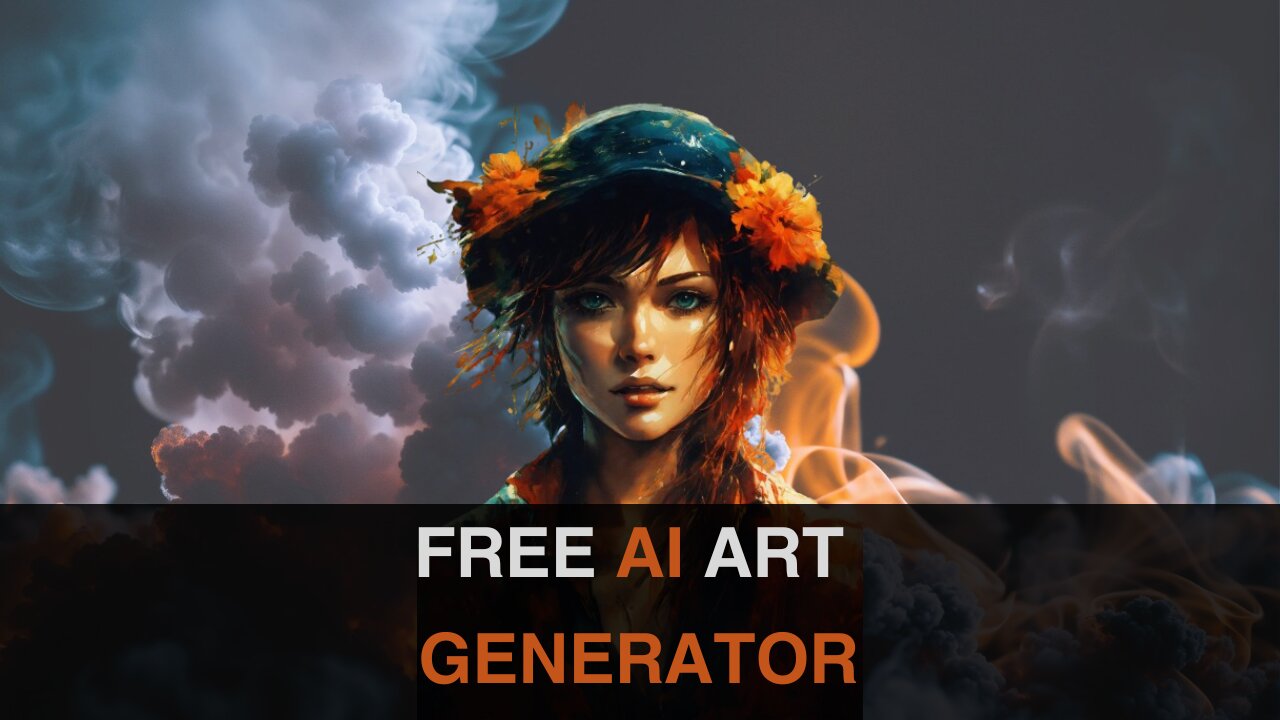
Create Amazing ANIME Artwork with a FREE AI ART GENERATOR (Midjourney Alternative) #aiart #ai
Create Amazing ANIME Artwork with a FREE AI ART GENERATOR (Midjourney Alternative) #aiart #ai #anime #midjourney #bluewillow #art #howto
In this video, I'm sharing my favorite FREE AI ART GENERATOR called "Midjourney Alternative". This tool makes it easy to create amazing ANIME art with a minimum of effort.
If you're a fan of anime and want to create some amazing artwork, then you need to check out this free AI ART GENERATOR. With Midjourney Alternative, you can create high-quality artwork in minutes, without any artistic experience required!
In this video, I will show you how to create amazing artwork with a free AI Art Generator with no limitations!
Step 1 : Join the Discord
Go to Bluewillow.ai and click join Beta. Everything you need happens within the Discord. Test your prompts, generate your images, meet others, and get support all in one place.
Before joining the Bluewillow Discord server, you must have a Discord login.
Step 2 : Go to a Rookie Channel
You can generate images with the Bluewillow Bot on any server that has invited the Bot. Look for instructions on your server on where to use the Bot.
Step 3: Learn Basic Command
Interact with the Bluewillow Bot on Discord using a Command. Commands are used to create images, change default settings, monitor user info, and perform other helpful tasks.
Here is a simple command structure : /imagine prompt + "your description"
Step 4 : Run your first command
Here is a basic example : /imagine prompt beautiful anime girl realistic
The Bluewillow Bot takes about a minute to generate four options.
Step 5: Reroll if needed
Click Re-roll button to reruns a job. In this case it would rerun the original prompt producing a new grid of images
Step 6: Make Variations
Click V Button to Creates a variation of the upscaled image and generates a new grid of four options. Choose the best variation for you.
Step 7 : Upscale Image
Click U Buttons or Upscale Buttons to upscale an image generating a larger version of the selected image and adding more details.
Step 8 : Save Your Image
Click on the image to open it to full size, and then right-click and choose Save image
Please subscribe this channel for more AI tools tutorial! Thank you!
-
 1:19:27
DeVory Darkins
2 hours agoBREAKING: DC Police Chief caught manipulating crime data in shocking report
82.7K16 -

Simply Bitcoin
3 hours ago $2.11 earnedEXPOSED: BlackRock Revealed WHY the price of Bitcoin is stuck at $90k!! | EP 1398
6.41K8 -
 LIVE
LIVE
Nerdrotic
4 hours ago $2.11 earnedNerdrotic Nooner 543
486 watching -
 LIVE
LIVE
Dr Disrespect
3 hours ago🔴LIVE - DR DISRESPECT - TERMINATOR 2D: NO FATE - FULL GAME
1,359 watching -
 6:59
6:59
Buddy Brown
1 hour agoSCARY Message about the 1930's Going viral now... | Buddy Brown
774 -
 LIVE
LIVE
Jeff Ahern
30 minutes agoMonday Madness with Jeff Ahern
49 watching -
 59:48
59:48
Timcast
3 hours agoViolence ERUPTS Over the Weekend, TERROR ATTACK In Australia
189K51 -
 1:55:56
Steven Crowder
5 hours agoAustralia Shooting: It's not the Guns it's Islam
410K390 -
 1:14:04
Sean Unpaved
3 hours agoVikings ELIMINATE Cowboys From Playoff Contention | UNPAVED
14.9K2 -
 1:01:04
The Rubin Report
4 hours agoMSNOW Host Realizes Ilhan Omar Is a Monster After Her Australia Shooting Reaction
52.5K79