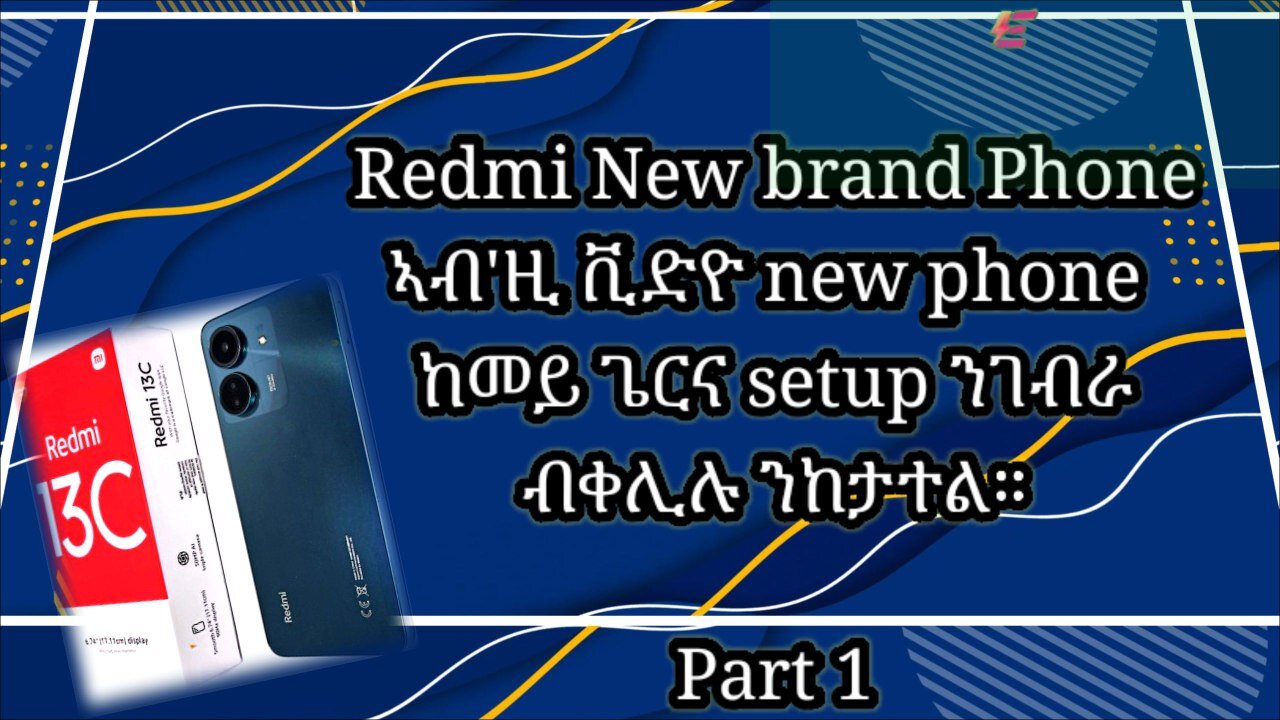
This is a simple guide on how to set up your new Redmi 13C
Part 1: Initial Setup Process
This guide will walk you through the first steps to get your new phone up and running.
1. Power On and Language Selection
First, ensure your phone has enough charge.[1] Press and hold the power button until you see the Redmi logo.[1] The first screen will prompt you to choose your preferred language.[2] Select your language and then your region.[2]
2. Connect to a Network
You'll need to agree to the user agreement and privacy policy to proceed.[3] The setup will then ask you to insert your SIM card, which you can do now or later.[2] Next, connect to a Wi-Fi network. This is important for downloading apps and software updates.[1]
3. Google Account and Data Transfer
You will be prompted to sign in with your Google account. This allows you to restore apps, contacts, and other data from a previous device if you have a backup.[1][2] If you don't have a Google account, you can create one during this step.[1] You'll also be asked if you want to copy apps and data from an old phone. You can choose to do this or start fresh by selecting "Don't copy".[2][4]
4. Google Services and Security
Next, you'll be presented with various Google services. You can choose to enable or disable options like location services, sending diagnostic data, and personalized ads.[3][4] Following this, you will be prompted to set up a screen lock to secure your device. Options typically include a PIN, pattern, password, fingerprint, or face unlock.[1][4]
5. Finalizing Setup
The final steps involve choosing your preferred search engine and deciding whether to set up Google Assistant and Google Pay.[2][4] You can also choose your home screen style, such as the classic layout or an app drawer.[2][4] Once these selections are made, the initial setup is complete.
Part 2: After Setup - Recommended Steps
Once you're on the home screen, here are a few things you should do to personalize and optimize your phone:
Check for Software Updates: Go to Settings > About Phone > System Updates to make sure your device is running the latest software for new features and security patches.[1]
Customize Your Phone: You can personalize your device by changing the wallpaper, organizing apps on your home screen, and adjusting settings like the screen's refresh rate for a smoother display.[1][5]
Uninstall Unwanted Apps: Your phone may come with pre-installed apps (bloatware) that you don't need. You can uninstall these to free up space.[5]
Set Up the Camera: Open the camera app and explore its settings. You can turn on features like HDR for better photos in various lighting conditions.[5]
Explore Features: Take some time to go through the phone's settings to discover other features, such as gesture navigation, battery optimization, and notification management.
-
 1:53:05
Darkhorse Podcast
4 hours agoThe 304th Evolutionary Lens with Bret Weinstein and Heather Heying
19.8K15 -
 LIVE
LIVE
LFA TV
20 hours agoLIVE & BREAKING NEWS! | THURSDAY 12/11/25
1,207 watching -
 LIVE
LIVE
freecastle
6 hours agoTAKE UP YOUR CROSS- In all these things WE ARE MORE than conquerors through HIM who loved us!
131 watching -
 2:09:50
MattMorseTV
5 hours ago $39.40 earned🔴Trump's MASSIVE Morning UPDATE.🔴
59.1K125 -
 1:12:52
iCkEdMeL
3 hours ago $5.30 earnedTyler Robinson in Court TODAY — Media Fight & Gag Order Battle
27.5K13 -
 9:25
9:25
Clownfish TV
3 hours agoStephen Colbert BEGS Paramount for His Job Back?! | Clownfish TV
14.2K7 -
 51:18
51:18
The White House
8 hours agoPress Briefing by the White House Press Secretary Karoline Leavitt
36.5K46 -
 28:39
28:39
The Boomer Effect
21 hours agoThe DEI Rebrand: What’s Really Happening in Higher Ed
11.7K -
 1:05:52
Timcast
5 hours agoTrump "America First" Tariffs Are WORKING, Liberals SPEECHLESS
182K76 -
 1:56:50
The Amber May Show
6 hours ago $0.69 earnedEsoteric Hollywood EXPOSED: Jay Dyer Breaks Down the Secret Symbols & Messaging| Smart Cities
18.1K5