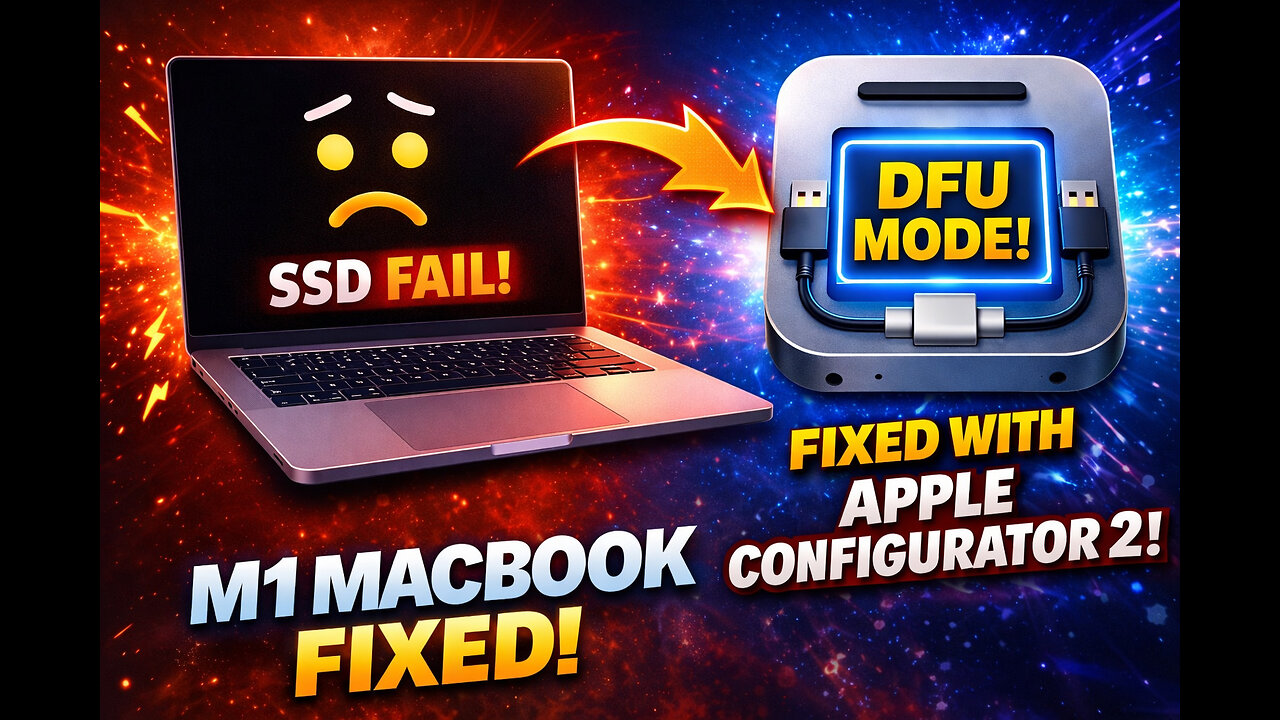
I Broke the SSD on my M1 Macbook Pro... Apple Configurator saved it!
☆-----☆-----☆-----☆-----☆ VIDEO INFOZ ☆-----☆-----☆-----☆-----☆
We BROKE an M1 MacBook Pro… and DFU SAVED it. 😅
This video is the full real-world recovery story: partition chaos, Disk Utility refusing to erase, and the “nuclear option” fix that actually works — DFU Restore using Apple Configurator 2 from another Mac.
If you’ve got an Apple Silicon Mac (M1/M2/M3) stuck with a messed-up drive, broken macOS install, or recovery that won’t cooperate… this is the method that can bring it back to life.
What you’ll learn
When DFU Restore makes sense (and when it’s overkill)
How Apple Configurator 2 fixes a “broken” drive / APFS layout
The exact DFU button combo + timing for the A2338 (2020) M1 MacBook Pro
What to click in Configurator to fully rebuild the SSD + reinstall macOS
DFU Mode Steps (A2338 2020 M1 MacBook Pro)
You’ll need:
A second Mac running Apple Configurator 2
A known-good USB-C data cable
Keep the MacBook plugged into power (recommended)
1) Connect the MacBook Pro to the other Mac (USB-C data cable).
2) Put the MacBook Pro into DFU mode:
Press and hold ALL of these for 10 seconds:
Control + Option + Right Shift + Power/Touch ID
After 10 seconds, release:
Control + Option + Right Shift
…but keep holding Power/Touch ID for 7–8 more seconds
3) On the other Mac in Apple Configurator 2:
You should see the DFU dotted box appear (that’s your MacBook in DFU mode).
Apple Configurator 2: What we clicked
Once the DFU device shows up:
Select the DFU device
Click Restore (⚠️ this wipes all data)
Let Configurator do the full restore + reinstall
Notes / Tips
Use a data-capable USB-C cable (charge-only cables won’t work)
Avoid hubs/docks during restore (direct cable is best)
If your MacBook battery is low, plug power into the other USB-C port while the data cable stays connected
If this helped you, drop a comment with what Mac model you’re rescuing — and what error you were stuck on. 👇
Like / Subscribe for more real-world Apple Silicon fixes, homelab chaos, and “why did I do this to myself” tech adventures.
#AppleSilicon #M1 #MacBookPro #DFUMode #AppleConfigurator2 #MacRepair #TechHeart
☆-----☆-----☆-----☆-----☆ CONTACT INFOZ ☆-----☆-----☆-----☆-----☆
TechHeart Memberships @ https://www.youtube.com/@techheart6090/join
Patreon @ https://www.patreon.com/c/TechHeart
Discord @ https://discord.gg/PyVMenmW2w
Website @ https://techheart.life
Buy Me a Coffee @ https://www.buymeacoffee.com/techheart
LinkTree @ https://linktr.ee/TechHeart
☆-----☆-----☆-----☆-----☆ LEGAL STUFF ☆-----☆-----☆-----☆-----☆
The information provided in this video is intended for educational purposes only. It is not intended to be legal or professional advice, and should not be relied upon as such.
By watching this video, you acknowledge that you understand and agree to these terms. If you disagree with these terms, do not watch this video.
-
 LIVE
LIVE
LFA TV
14 hours agoLIVE & BREAKING NEWS! | FRIDAY 2/6/26
4,058 watching -
 50:10
50:10
The Rubin Report
2 hours agoNew Proof of Ilhan Omar’s $5M Winery Fraud Just Went Viral
32.6K14 -
 LIVE
LIVE
The Mel K Show
1 hour agoMORNINGS WITH MEL K - 2-6-26 Consent of the Governed is Moot in DC
764 watching -
 LIVE
LIVE
Film Threat
16 hours agoGOOD LUCK, HAVE FUN, DON'T DIE + LOADS OF REVIEWS | Film Threat Livecast
88 watching -
 LIVE
LIVE
NXRStudios
2 hours agoEpstein Files: Top 3 Takeaways w/Harrison Smith of INFOWARS
157 watching -
 1:07:03
Graham Allen
4 hours agoWE ARE OVER IT! It's Time for WAR and May the BEST Team Win!
150K409 -
 2:16:36
Matt Kohrs
11 hours agoLIVE DAY TRADING: Stocks Bounce, Crypto Calms & Payday Friday Giveaway
74.8K2 -
 LIVE
LIVE
Major League Fishing
1 day agoLIVE Tackle Warehouse Pro Circuit, Stop 1, Day 1
182 watching -
 1:30:57
Caleb Hammer
3 hours agoI've Never Hated A More Vile Piece Of Trash | Financial Audit
22.9K7 -
 1:29:51
The Big Mig™
2 hours agoSHOCKING About US Military Being Fed Poison & Toxic Trash
13.4K14