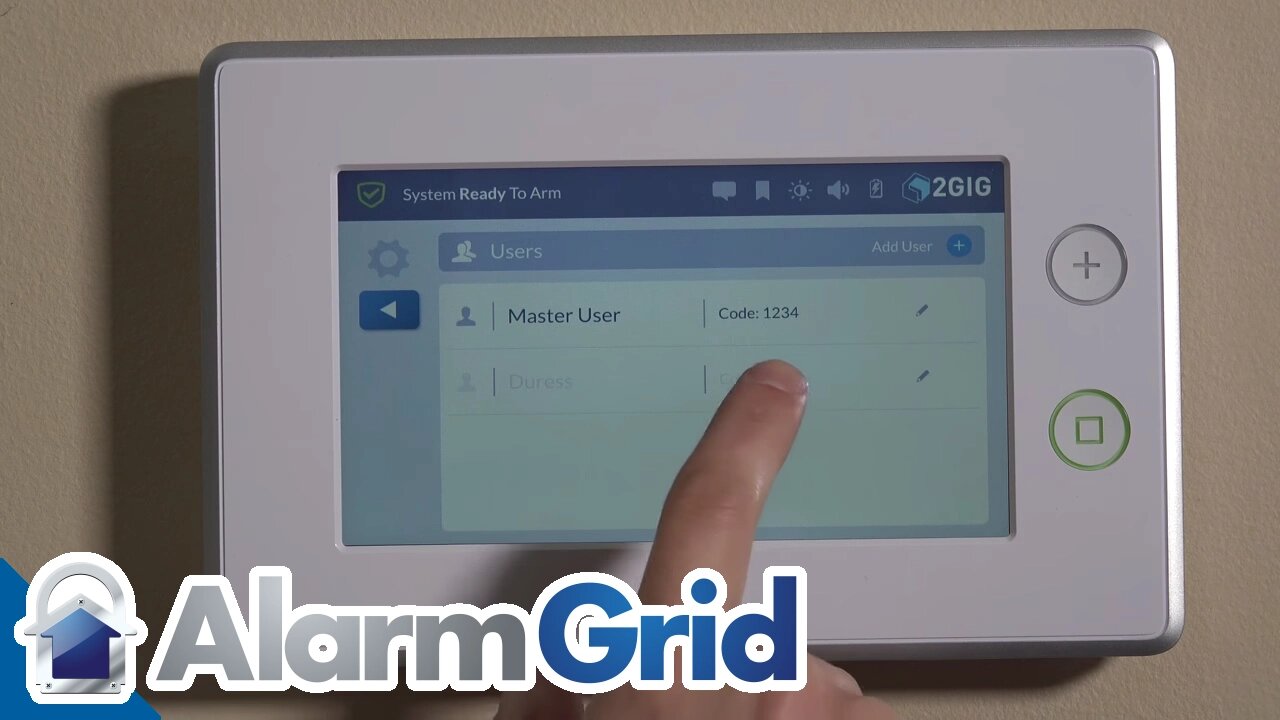
2GIG GC3: Changing the Master Code
This tutorial helps keep your 2GIG GC3 alarm system secure by showing you how to change the default Master Code and add other users.
Honeywell GC3: http://alrm.gd/2gig-gc3
Get Monitored! http://alrm.gd/get-monitored
All home security systems are programmed with a default Master Code. You’ll want to change this code soon after installation, so your system can only be accessed by you and members of your household.
This video details how to change the Master Code on the GC3, which is 2GIG’s newest self-controlled wireless system.
As shown in the video, the default Master Code for the system is 1111. Unfortunately, anyone familiar with this type of alarm will also know this code. Fortunately, changing the code takes just a minute or two.
First, you’ll hit the System Settings button. As shown in the video, this is a blue button found in the lower right corner of the main display. Hitting the button brings up a touchpad where you enter the default 1111 code (which is simple because it’s designed to be used basically only for setup).
Entering the code takes you to a grid of various system setting. The video shows you where to find the Users section. Hitting the Users section takes you to a list of users.
Most likely, the only user listed will be the Master User. You can rename the “Master User” to be whatever you like, such as your first and last name.
Before changing the name, the video shows you how to change the Master Code. Next to each user’s name is a pencil icon. Clicking on the icon takes you to a keypad where you can enter a new code.
You’ll want to enter a code which is easy to remember but hard to guess. Avoid using your house number or last four digits of your home phone number. In the video, we used “1234” but you’ll want something more complicated.
You’ll need to enter the code twice to confirm. After confirming the code you’ll see a screen displaying the user number, user name and the new code.
You can change the user name by clicking the pencil icon. The video also shows you how to add users. New users can be given their own unique code. Plus, restrictions can be put in place limiting each user’s access to the system.
This video covers the difference between the Master Code and the Installer Code. Basically, the Master Code is for everyday operations while the Installer Code lets you access setup and maintenance features.
As a do-it-yourselfer, you’ll use the Installer Code more often than a user who had the system installed by someone else. The Installer Code on the GC3 lets you setup the key fob, designate alarm zones, view event logs and other more technical information. Other videos cover how to change the Installer Code and navigate the various Installer features.
Changing the default Master Code is one of the first actions you’ll want to take when setting up your GC3. Not only does this keep the system secure against unauthorized access, but you’ll also be able to personalize the system for the needs of your household.
-
 3:31
3:31
Alarm Grid Home Security DIY Videos
2 years ago $0.01 earnedWireless Repeater: Use With Life Safety Devices
39 -
 LIVE
LIVE
Wendy Bell Radio
4 hours agoTerm Limits Fix All This
5,362 watching -
 LIVE
LIVE
Framers View
2 hours agoFramersView
31 watching -
 LIVE
LIVE
LFA TV
16 hours agoLIVE & BREAKING NEWS! | WEDNESDAY 2/4/26
3,316 watching -
 1:48:42
The Dan Bongino Show
4 hours agoThe Looming Threat That Nobody Is Talking About (Ep. 2445) - 02/04/2026
637K748 -
 1:06:01
The Rubin Report
2 hours agoIlhan Omar Finally Got Scared After New Proof of Her $5M Winery Fraud Just Went Viral
31K25 -
 LIVE
LIVE
Trumpet Daily
2 hours agoGadi Taub Interview - Trumpet Daily LIVE | Feb. 4, 2026
220 watching -
 LIVE
LIVE
The Mel K Show
2 hours agoMORNINGS WITH MEL K - DC Reminds Americans They Don’t Work for US! 2-4-2026
672 watching -
 1:51:27
Nick Freitas
2 hours agoHappening NOW: Virginia Democrats Say Screw You to Victims
20.3K2 -
 LIVE
LIVE
Nikko Ortiz
1 hour agoGround Branch Update... | Rumble LIVE
111 watching